Take a closer look at a run
Review pace and heart rate.
Ask about the segments that interest you.
“Look at my pace and heart rate
in the second half of my latest run.”
 TTRunner
TT MCP / AI APP CONNECTION
Talk to an AI that knows your runs.
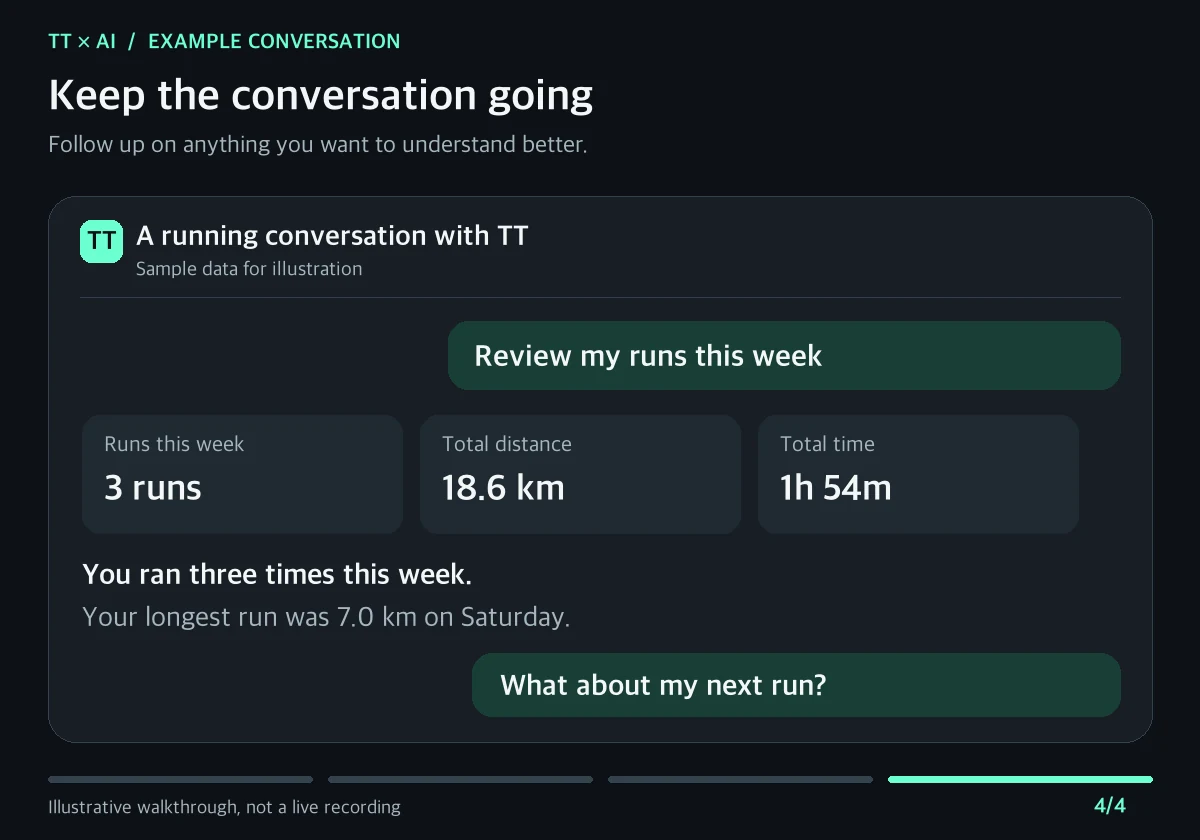
Connect the records you keep in TT
and ask more with less explaining.
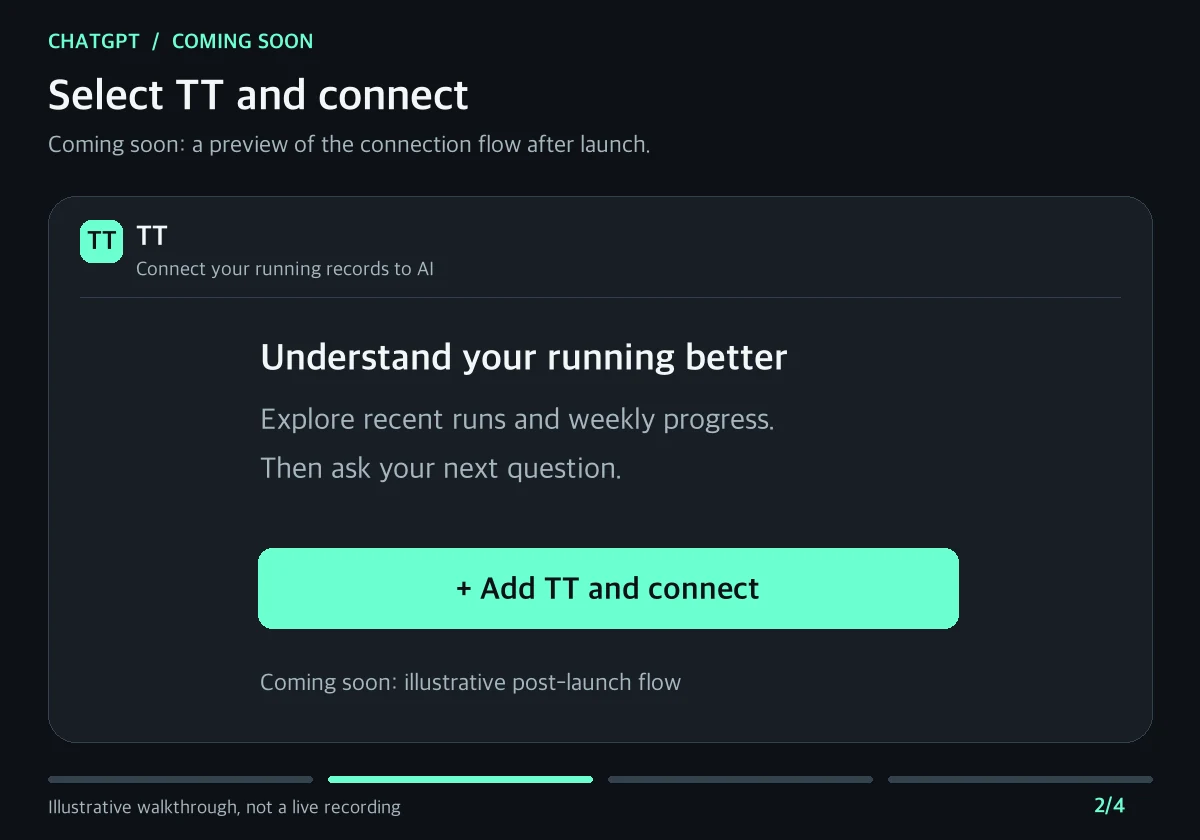
ChatGPT: a preview of the flow after launch.
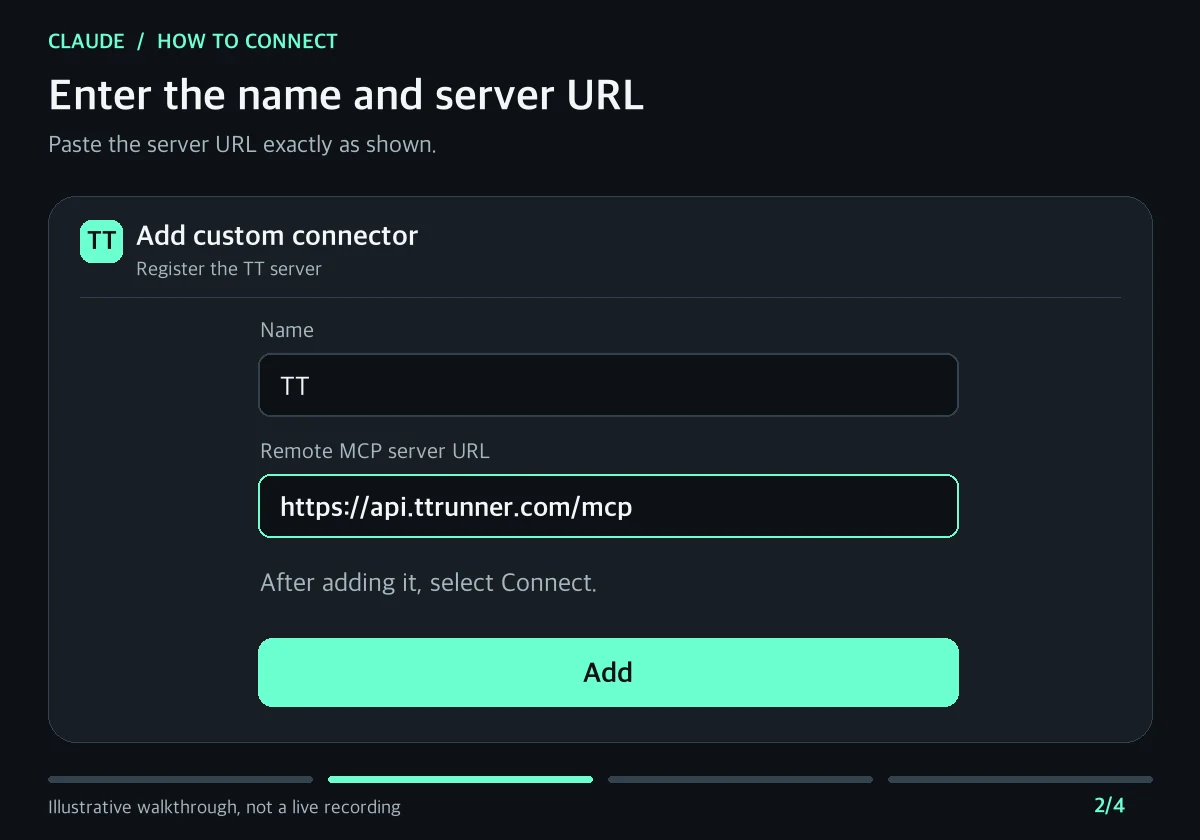
Claude: add TT as a custom connector.
LESS COPYING. MORE RUNNING.
From individual runs to training patterns.
Find answers in the records saved in TT.
Review pace and heart rate.
Ask about the segments that interest you.
“Look at my pace and heart rate
in the second half of my latest run.”
Compare runs of similar distances
and explore what changed.
“Compare my two most recent
5 km runs.”
Review weekly runs alongside
your saved training plan.
“Summarize this week’s training
and compare it with my plan.”
Only synced records and information you agree to share are used. Missing data cannot be reviewed.
ONE CONNECTION. MORE CONTEXT.
Sign in to TT and sync your running records first.
Connect once to bring those records into your conversations.
This previews how to connect after TT launches on ChatGPT. TT may not appear in app search yet. We will check the actual screens and connection flow again at launch.
Connect the app, then ask as you normally would.
Open Apps or Plugins in ChatGPT and search for TT. Open the published TT app’s details.
Use the plus (+) button to install TT. When prompted to connect your account, select Connect to open the TT approval screen.
Scan the QR code or open TT using the app link. Select the matching number, review the information to be shared, then tap “Agree and connect.” Return to the browser where you started to finish.
In a new chat, select @TT or choose TT from the tools menu. Try asking, “Review my runs from this week.”
CUSTOM CONNECTOR
Enter a name and the server URL to get started.
In Claude on the web or desktop, open Customize → Connectors. Select Add custom connector or Add → Custom → Web.
Enter TT as the name and paste the URL above into Remote MCP server URL. If asked to choose an OAuth client, select Use Claude’s published identity.
Add the connector and select Connect. Scan the QR code or open TT using the app link. Select the matching number and review what will be shared. Tap “Agree and connect,” then return to your browser.
In a new chat, enable TT under + → Connectors and ask a question. Try, “Show me my recent runs.”
Menu names may vary by language and app version. Your AI app’s plan and workspace permissions may limit access to connection settings.
In TT, go to Profile → Settings section → AI app connections → Enter a new connection code and enter the 8-character code shown in your browser. If the request expires, start connecting again from the AI app.
START WITH A QUESTION.
Copy a prompt and paste it into your connected AI app.
Find my most recent run in TT. Explain how my pace and heart rate changed using the recorded data.
Summarize my runs from this week in TT. If I have a saved training plan, compare it with my actual runs.
Compare two recent runs of similar distances in TT. Point out any differences in conditions that make a direct comparison difficult.
Answers vary with your saved data and AI app. The images above are illustrations made with fictional running records.
GOOD TO KNOW.
TT MCP connects your TT running records to an AI app so you can view them and ask questions. Keep the conversation going without copying data or attaching screenshots each time.
You can use it with TT Premium. If you do not have Premium, your first approved connection starts a 7-day trial. The trial is available once per account. TT Premium is required to continue afterward. Your AI app has its own terms and pricing.
The connection approval screen shows the information to be shared, including running records and training information. TT provides the information needed for the AI app’s request within your approved permissions. Heart rate and health metrics are only available when stored and included in your consent.
Open “AI app connections” from your profile in TT and revoke the connection. This stops future requests. Information and conversations already sent to the AI app are not deleted. Manage those separately in that app.
This is a preview of how to connect after launch. TT may not appear in app search before it is published. If you still cannot find it after launch, check the app permissions for your account and workspace.
This guide covers viewing and comparing records and reviewing saved plans. An AI response alone does not automatically save or change a training plan in TT.
YOUR NEXT STEP STARTS HERE.
Start by bringing your running records into TT.
Get the TT app